I once spent an entire Saturday trying to figure out why Elden Ring kept crashing to desktop right at the loading screen. No error message, no warning, just the game vanishing like it never opened. I reinstalled it twice, convinced the download was corrupted. Turns out it was a conflict with an overlay app I’d forgotten was even running in the background.
That day taught me something that’s held up ever since: game crashes almost never mean what you think they mean. The obvious explanation is rarely the actual cause, and most people give up or reinstall way too early instead of working through it properly.
I’ve since helped enough friends fix “unplayable” games that I’ve basically got a mental checklist at this point. It’s saved me from more reinstalls, more refund requests, and more wasted evenings than I can count. Here’s that checklist, laid out properly.
Why games crash in the first place
Before jumping into fixes, it helps to know the usual suspects. In my experience, most Windows game crashes come down to one of these:
- Outdated or corrupted graphics drivers
- Missing or outdated system files (like DirectX or Visual C++ runtimes)
- Conflicting background software (overlays, antivirus, RGB software)
- Corrupted game files
- Overheating hardware
- Windows itself needing an update
- Mods or unofficial patches causing instability
Notice hardware failure isn’t even at the top of that list. Most of the time, it’s software conflicts, not a dying graphics card.
Step 1: Check the actual error message first
This sounds obvious, but a lot of people skip straight past the error message without actually reading it, especially if it flashes by quickly or just says something generic like “the application has stopped working.”
If you get an actual error code or message, search it directly, ideally combined with the specific game name. Error codes like “0xc0000005” or “DXGI_ERROR_DEVICE_REMOVED” point to very different problems, and knowing which one you’re dealing with saves a lot of guesswork.
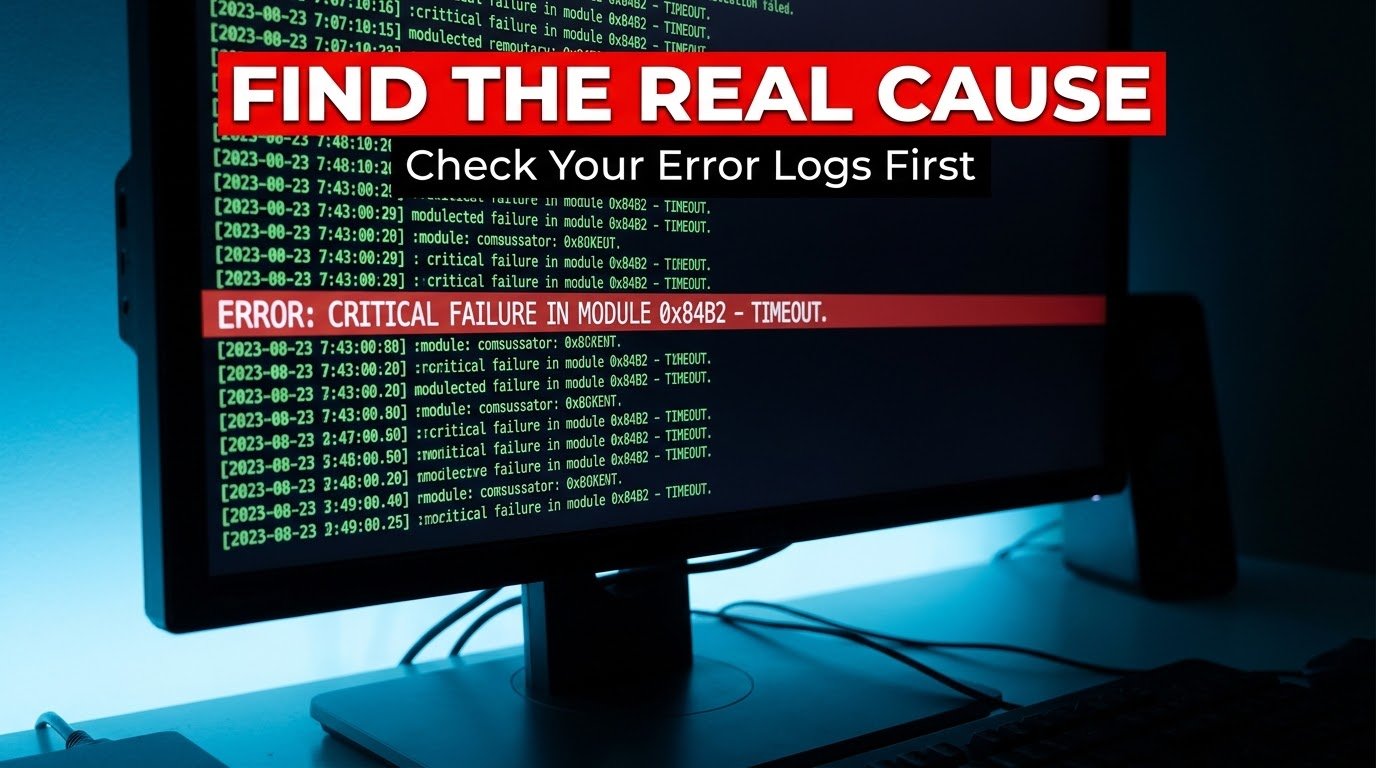
If there’s no visible error, check the Windows Event Viewer. Search for it in the Start menu, go to Windows Logs > Application, and look for a red “Error” entry around the time your game crashed. It usually names the exact file or process that caused the crash, which narrows things down fast.
Step 2: Update your graphics drivers (properly)
I know I mention this in basically every troubleshooting article I write, but it’s because it genuinely fixes an enormous percentage of crashes. Outdated or partially corrupted drivers are one of the most common causes of random crashes, especially right after a new game launches or a big Windows update rolls out.
Steps:
- Open the NVIDIA App or AMD Adrenalin software
- Check for the latest driver version
- Choose the clean install option if available, not just a standard update
- Restart your PC after installing, don’t skip this part
I’ve seen “unplayable” games become perfectly stable just from this one step more times than I can count.
Step 3: Verify your game files
Every major platform has a built-in way to check if your game’s files are corrupted or missing pieces, and this fixes crashes more often than people expect.
- Steam: Right-click the game > Properties > Installed Files > Verify integrity of game files
- Epic Games Store: Click the game > the three dots menu > Verify
- Battle.net: Click the gear icon next to the game > Scan and Repair
This process checks every file against what it’s supposed to be and re-downloads anything that’s damaged or missing. It takes a few minutes depending on your internet speed, but it’s genuinely one of the most underused fixes out there.
Step 4: Install or repair Microsoft Visual C++ and DirectX
A huge number of PC games rely on these behind the scenes, and if they’re missing, outdated, or corrupted, games can crash on launch without any clear explanation.
Most games actually bundle these installers in their own folder. You can find them by:
- Right-clicking the game in Steam > Manage > Browse Local Files
- Looking for a folder named something like “_CommonRedist” or “Redist”
- Manually running the Visual C++ and DirectX installers inside
Alternatively, download the latest versions directly from Microsoft’s official website rather than random third-party sites, since some of those bundle unwanted extra software.
Step 5: Close background apps that commonly cause conflicts
This is what actually fixed my Elden Ring crash, and it’s more common than people assume.
The usual suspects:
- Overlay apps — Discord overlay, Steam overlay, NVIDIA/GeForce overlay, RGB software overlays (Razer Synapse, Corsair iCUE, ASUS Armoury Crate)
- Antivirus software — sometimes flags game files incorrectly and blocks them mid-launch
- Screen recording or streaming software — OBS, and similar tools can occasionally conflict with certain game engines
Try closing these one at a time and relaunching the game to isolate which one’s actually causing the issue, rather than closing everything at once and never finding the real culprit.
Step 6: Run the game as an administrator and check compatibility settings
Sometimes Windows just doesn’t give a game the permissions it needs, especially with older titles running on newer versions of Windows.
Right-click the game’s executable file, go to Properties, then:
- Check “Run this program as an administrator” under the Compatibility tab
- If it’s an older game, try the compatibility mode dropdown and select an older Windows version to test
I’ve fixed multiple pre-2015 game launch crashes just by setting compatibility mode to Windows 7, oddly enough.
Step 7: Check your temperatures
If a game crashes specifically during intense scenes (big battles, dense areas, high-action sequences) but works fine during calmer moments, overheating is worth checking.
Use a free tool like HWMonitor or MSI Afterburner to watch your GPU and CPU temperatures while playing. If you’re hitting 90°C or higher consistently, your system might be thermal throttling or shutting processes down to protect itself. Cleaning out dust, improving airflow, or reapplying thermal paste on an older build can solve this.
A mistake I made that cost me hours
Early on, I assumed a crashing game meant a fresh reinstall was the fix, every single time. I probably wasted 15+ hours over the years reinstalling games that had nothing wrong with their actual files. The problem was almost always somewhere else, drivers, background software, or missing runtime files.
Reinstalling should be closer to your last resort, not your first move. It rarely fixes anything that a proper verify-files check or driver update wouldn’t have already solved, and it costs you way more time.
Real example: fixing a friend’s Warzone crashes
A friend messaged me convinced his new PC was defective because Warzone kept crashing every 10-15 minutes. Brand new build, so hardware failure seemed unlikely, but he was ready to send parts back.
Here’s what actually fixed it, step by step:
- Updated his GPU drivers with a clean install (still crashed)
- Verified game files through Battle.net (still crashed)
- Checked Event Viewer, which pointed to a conflict with his antivirus software
- Added the game folder as an exception in his antivirus settings
No more crashes after that. Nothing wrong with his hardware at all, just an antivirus program being overly aggressive with a big multiplayer game’s files.
Common mistakes to avoid
Reinstalling as your first fix. Save this for last. It rarely addresses the actual root cause and costs you the most time and bandwidth.
Ignoring the actual error message or code. Even a quick error code search points you in a specific direction instead of guessing randomly.
Updating drivers through Windows Update only. Go directly to NVIDIA, AMD, or Intel’s own software for more complete and current driver versions.
Closing everything at once instead of isolating the cause. If you close ten background apps simultaneously and the crash stops, you still won’t know which one was actually the problem, which makes it harder to prevent next time.
Skipping Event Viewer. It sounds intimidating, but it usually names the exact file or process causing your crash, saving you a lot of blind troubleshooting.
Final thoughts
Crashes feel random and frustrating in the moment, but they’re almost never actually random once you know where to look. Most of the time it’s drivers, background conflicts, missing system files, or corrupted game data, not your hardware falling apart like people usually assume.
Work through these steps in order rather than jumping around randomly, and you’ll usually land on the actual cause faster than you’d expect. And next time a game crashes right as you’re about to fight a boss, take a breath before you hit reinstall. There’s a decent chance the real fix is something much smaller than starting over completely.