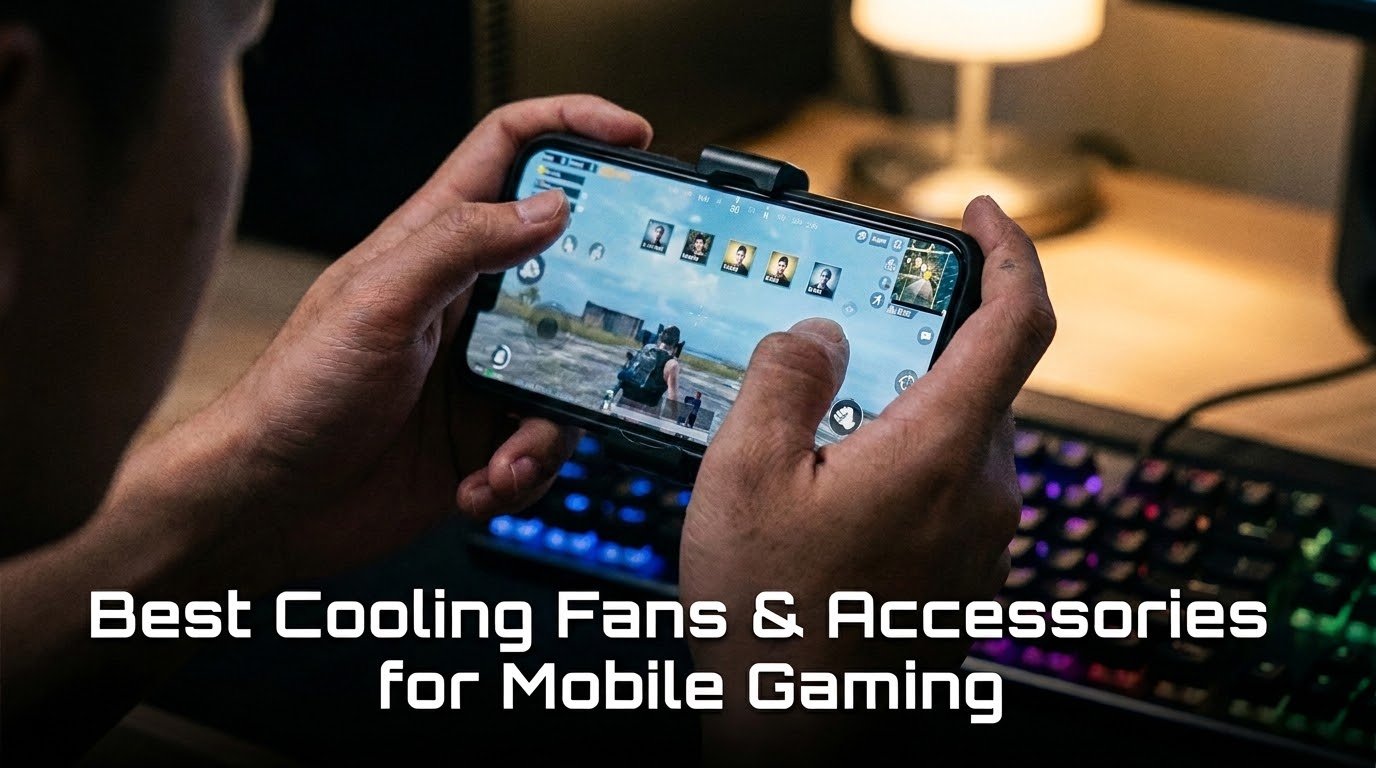
I still remember the exact moment my phone shut itself off mid-match in PUBG Mobile. Final circle, three enemies left, and my screen just went black with a little thermometer warning icon. By the time it rebooted, I was already dead and my squad was typing angry messages in chat.
That was the day I stopped ignoring the heat warnings and actually started doing something about it.
If you play anything demanding like Genshin Impact, Call of Duty Mobile, BGMI, Wild Rift, Diablo Immortal, you already know the feeling. Your phone starts warm, gets uncomfortably hot within twenty minutes, your frame rate starts stuttering, and eventually the game throttles itself so hard it feels like you’re playing on a potato. It’s not your imagination. It’s thermal throttling, and it’s the single biggest performance killer in mobile gaming that nobody talks about enough.
After going through three different cooling setups (and wasting money on one that did basically nothing), here’s everything I actually learned.
Why Your Phone Gets So Hot in the First Place
Before jumping into gear, it helps to understand what’s actually happening inside your phone.
Mobile chipsets are packed into a tiny space with almost no room for airflow. Unlike a laptop or gaming PC, there’s no fan inside your phone pushing hot air out. The heat from your processor and GPU has nowhere to go except through the phone’s metal or glass frame, and eventually into your hands.
When that heat builds up faster than it can escape, the phone’s software steps in and deliberately slows down the chip to protect it. That’s the stutter you feel. It’s not a bug, it’s your phone protecting itself from damage.
Once I understood that, cooling gear stopped feeling like a gimmick and started feeling like a genuinely necessary tool, the same way a cooling pad is necessary for a gaming laptop.
My First Mistake: Buying the Cheapest Clip-On Fan I Could Find
My first cooling fan cost me around eight dollars. It clipped onto the back of my phone, had a tiny fan, and honestly, it barely made a dent. My phone still hit the same temperatures within fifteen minutes.
The problem wasn’t the concept, it was the execution. Cheap clip-on fans usually just blow air across the back of your phone case, which does almost nothing because the case itself is insulating the heat. If the fan isn’t making direct contact with the phone’s body (or as close to it as possible), you’re mostly just cooling the air around your hands, not the chip that’s actually overheating.
Lesson learned: contact matters more than airflow volume.
What Actually Works: Semiconductor Cooling Fans
The gear that made a real difference for me were the fans using thermoelectric cooling, sometimes called Peltier cooling. Brands like Black Shark, Razer, and Flydigi all make versions of these.
Here’s how they’re different:
- They physically touch the back of your phone with a metal cold plate
- That plate is actively cooled using a semiconductor chip, not just a spinning fan
- Many come with a built-in fan too, for extra airflow
- Some even show real-time temperature readings in their companion app
When I switched to a semiconductor cooler, the difference was honestly kind of shocking. My phone that used to sit around 45–48°C during intense gaming sessions stayed closer to 32–35°C. That’s not a small improvement, that’s the difference between constant throttling and smooth, consistent frame rates for two hours straight.

Step-by-Step: How I Set Up My Cooling Fan Properly
If you’re trying this for the first time, here’s exactly what I do before every long gaming session:
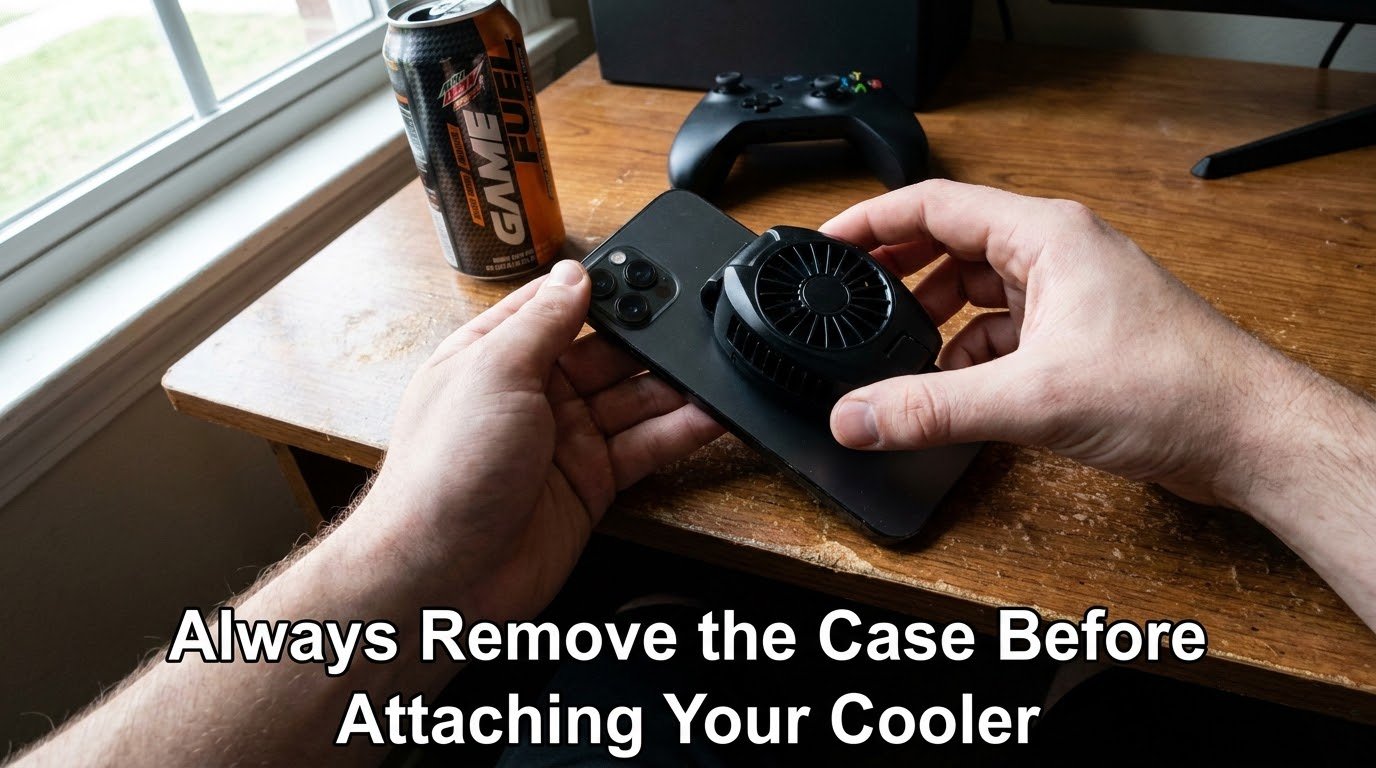
Step 1: Remove your phone case. This one trips people up constantly. If your case is still on, the cooling plate can’t make direct contact with the phone’s frame, and you lose most of the benefit.
Step 2: Clean the contact area. I wipe the back of my phone with a microfiber cloth first. Dust or fingerprints between the cooler and the phone reduce heat transfer more than you’d expect.
Step 3: Position the cooling plate over the chipset, not the camera. Most phones have their main chip located in the upper-middle or center-back area. Check your phone model online if you’re not sure — placing the cooler too low does very little.
Step 4: Turn on the fan before you start gaming, not after. Preemptive cooling works way better than reactive cooling. I start mine two or three minutes before loading into a match.
Step 5: Charge separately if your cooler has pass-through charging. A lot of the better coolers, including some Black Shark models, let you charge your phone while gaming without adding extra heat from the charging cable. This alone helped me a ton since charging while gaming used to make my overheating problem so much worse.
Accessories Beyond the Fan Itself
A cooling fan is the main piece, but a few other accessories genuinely helped round things out for me.
A breathable phone grip or controller mount — Solid rubber grips trap heat. Switching to a controller like the GameSir or Razer Kishi with proper ventilation actually let more air circulate around the phone’s back panel naturally.
A phone stand with airflow gaps — If you play with your phone propped up on a desk, a stand with open slats underneath lets heat escape from the bottom instead of building up against a flat surface.
Performance mode settings inside the game — This isn’t hardware, but it matters just as much. Lowering shadow quality or frame rate caps slightly reduces the workload on your chip, meaning your cooling fan has less heat to fight in the first place.
Common Mistakes People Make (I Made Most of Them)
- Keeping the phone case on. I said it already, but it’s worth repeating because it’s the number one reason people think their cooling fan “doesn’t work.”
- Charging and gaming at full brightness simultaneously without pass-through cooling. This combo generates a ridiculous amount of heat.
- Buying a fan based only on price. The eight-dollar fan taught me that lesson the hard way.
- Ignoring background apps. Streaming apps, Discord calls, and background downloads all add extra heat load that your cooling fan then has to compensate for.
- Ignoring software-level fixes entirely. Cooling accessories help a lot, but they work best combined with proper phone settings. I actually wrote a full breakdown of the software-side fixes in how to reduce overheating on your phone, which pairs well with anything you do on the hardware side.
Is It Actually Worth Buying One?
If you play mobile games casually for ten or fifteen minutes at a time, you honestly might not need one. Your phone can usually handle short bursts fine.
But if you’re someone who plays ranked matches, long raid sessions, or competitive multiplayer where consistency matters, a decent cooling fan is one of the cheapest performance upgrades you can make. Cheaper than a new phone, cheaper than most in-game purchases, and it directly fixes the exact problem that’s costing you matches.
For reference on the broader thermal management side of things, Android Authority has covered phone overheating causes in a way that lines up with what I experienced firsthand the throttling isn’t random, it’s predictable once you understand the pattern.
Final Thoughts
I didn’t expect a small clip-on gadget to change how I game, but it genuinely did. Going from constant mid-match stutters to smooth, stable performance for hours made me actually enjoy competitive mobile gaming again instead of dreading the heat warning popping up.
If you’re on the fence, start with a mid-range semiconductor cooling fan, ditch your phone case while gaming, and pair it with a few software tweaks. That combination alone solved about 90% of my overheating problems, and there’s a decent chance it’ll do the same for you.